
0:00
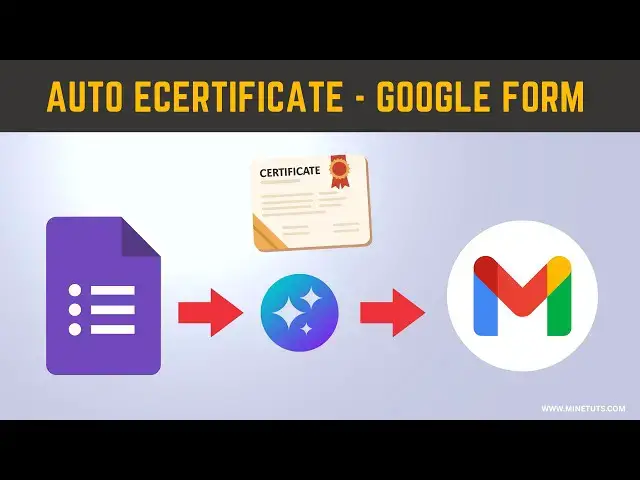
When you just ran a webinar, a workshop,
0:02
or an online course, and instead [music]
0:04
of manually creating certificates for
0:05
every participant, what if the
0:07
certificates could be generated
0:10
>> and sent to their email the moment they
0:11
submit a form? Sounds amazing, right?
0:14
[music] Well, today I'm going to show
0:16
you exactly how to do that using Google
0:18
Forms, Google [music] Sheets, and a
0:20
powerful add-on called Autocrat. Let's
0:28
Hi everyone. In this video, we'll learn
0:31
a step-by-step [music] process to
0:33
automatically generate e-certificates
0:35
for your participants.
0:37
Step one, create [music] your Google
0:40
Ask participants for the details you
0:42
want on the certificate, [music] like
0:44
name, email address, course name, or
0:47
date. Make sure you mark the email field
0:50
as required because [music] we'll be
0:51
sending the certificate there
0:52
automatically. In this form, don't add
0:55
an email address field separately.
0:57
Instead of the go to the settings tab in
0:59
the Google Form, then enable collecting
1:01
email addresses. It will collect [music]
1:03
emails for you. Otherwise, you will
1:06
encounter some issues when sending
1:31
>> Once your form is ready, submit a test
1:34
response [music] to make sure the
1:35
answers appear correctly in the linked
1:37
Google Sheet. This sheet is where
1:39
Autocrat will pull the data from.
1:43
prepare your certificate [music]
1:46
Open Google Slides and create a
1:48
professional-looking certificate.
1:50
Don't worry if it's simple.
1:52
It just needs to have placeholders for
1:54
the information that will change, like
1:56
participant [music] name, course name,
1:57
or date. If you have a pre-designed
1:59
template, add it to Google [music]
2:01
Slides and set up a variable like this.
2:03
These variables help to connect Google
2:05
Form data to the e-certificate.
2:13
>> Step three, install and set up Autocrat.
2:17
Here is where the magic happens,
2:19
>> the Autocrat add-on. Open the
2:21
spreadsheet where your responses are
2:23
recorded. You can find the view in sheet
2:26
>> link in the responses tab. To install
2:29
extension we need, click on [music]
2:31
extensions, then search for Autocrat and
2:48
>> Once installed, launch Autocrat and
2:51
click new job. Now we are ready to
2:54
automate the whole process using this
2:56
[music] extension. Enter a job name you
2:58
want, then select your Google Slides
3:01
certificate template.
3:09
>> Once you select the template, variables
3:12
will appear here. Map the variables from
3:14
your template [music] to the
3:15
corresponding columns in your sheet.
3:21
Autocrat also lets you choose the
3:23
[music] file format for the
3:24
certificates. I usually use PDF and set
3:28
it to automatically email the
3:29
certificate to the participant with a
3:37
>> Next section, you can edit the message
3:40
that is going to send along with the
3:41
certificate. Make sure [music] to set
3:43
the email address variable for email.
3:46
You can also use the predefined
3:48
variables inside [music] the email.
4:19
>> At last, set the run with a trigger
4:22
option, then it will run after
4:24
submitting the Google Form.
4:41
>> Step four, test and automate.
4:45
Now it's [music] time to test. Submit a
4:47
new form entry and watch Autocrat work.
4:50
In just a few seconds, the certificate
4:52
is generated and sent to the email
4:54
address you provided. [music] Now it
4:56
will run automatically every time a new
4:58
response is submitted, so you don't have
5:00
to lift a finger. And there you have it,
5:02
a fully automated [music] system for
5:04
sending e-certificates using Google
5:06
Forms, Sheets, and Autocrat. [music]
5:09
No more manual work, no delays, just
5:12
instant recognition for your
5:13
participants. If you found this video
5:15
helpful, don't forget to hit the like
5:17
button, subscribe for more productivity
5:21
and leave a comment below if you have
5:22
any questions. Thank you.